PDF Reader – PDF Viewer
EZTech AppsProductivity
4.23.35K Reviews
- Version
- 3.3.0
- Installs
- 100.00M
- Age Rating
- Everyone
Screenshots
Our Review of PDF Reader – PDF Viewer
 Analysis by Appyee
Choosing a PDF app is less about finding the longest feature list and more about deciding what you need to do after opening a file. If you mainly read, keep your place, and make occasional notes, a dedicated reader can be easier than a full office suite. If you need detailed editing or a carefully controlled document workflow, a more specialized tool may suit you better. I look at PDF Reader – PDF Viewer as a practical middle ground: it brings reading and basic document handling together without asking you to build a complicated system around it.
Start with the jobs you actually do
Before switching readers, I’d think about the PDFs that come up in a normal week. A person reviewing class handouts, recipes, travel confirmations, or work documents has different needs from someone revising contracts or preparing print-ready files. For everyday reading, quick access, visible page navigation, and a way to return to a useful spot matter more than advanced editing controls.
That is where this app’s combination of reading, annotation, bookmarks, and file organization makes sense. You can use a bookmark to return to a chapter, highlight a passage you want to revisit, and keep documents arranged rather than repeatedly searching through a mixed pile. Those small steps are especially helpful on a phone, where switching between a PDF and a notes app can interrupt concentration.
Where this reader earns its place
A realistic example is a student opening a lecture handout between classes. They can read a few pages, mark a passage to ask about later, and bookmark the current section before putting the phone away. When they return to the file, they have a cue for where to continue instead of scrolling through the document again. The same routine works for a project brief or a long set of instructions that needs more than one sitting.
Folder and sorting tools are useful for a different reason: they reduce the effort of finding a file later. I’d group documents by purpose—such as study, work, and personal records—rather than relying on a single catch-all folder. Renaming a file with a clear subject can also make a bigger difference than it sounds, especially when several PDFs arrive with vague or similar names. This is a simple habit, but it helps a mobile reader feel more like a usable document shelf.
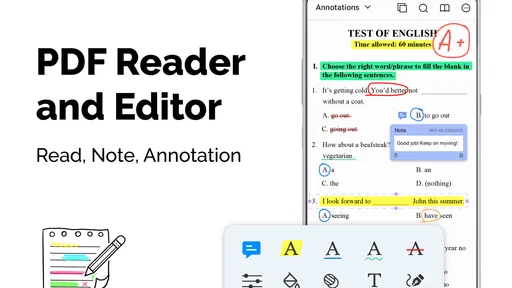
Annotation is best treated as a lightweight review tool. Highlighting a sentence or adding a short note can make a document easier to discuss or revisit, but I would not assume that mobile markup replaces a full editing workflow. On a small screen, drawing or selecting text can be less precise than using a computer, and extensive revisions are usually more comfortable with a keyboard and a larger display. For quick comments and reading notes, though, having those controls close at hand is convenient.
What to expect from the everyday experience
Night mode can make a late reading session feel more comfortable, but it is a viewing preference rather than a substitute for adjusting screen brightness or taking breaks. I’d use it for reading text-heavy documents in a dim room and switch back when a file depends on colors, diagrams, or precise visual presentation. That distinction matters because a darker interface may be pleasant without being the right way to inspect every page.
It also helps to decide where you want your documents to live. A reader with its own file-management tools can be handy if you prefer to organize PDFs inside one app. If you already rely on a particular cloud drive, email workflow, or file manager, you may prefer opening documents from that system and keeping it as your main source of truth. The smoothest setup is the one that avoids duplicate copies and makes it clear which file is current.
For someone deciding whether to install it, the practical question is not simply whether it can open a PDF. It is whether its reading and organization tools fit the way they already handle documents. People who mostly tap a file, read it, and close it may be satisfied with a basic built-in viewer. People who regularly annotate and sort PDFs may get more value from a dedicated app like this one.
Ever found yourself scrolling through endless emails and documents on your phone, only to realize you need a reliable way to view PDFs on the go? Well, I’ve got just the app for you. Let’s dive into what makes PDF Reader – PDF Viewer a must-have in your app collection, especially if you're always on the move.
First Impressions and User Interface
When I first downloaded the PDF Reader – PDF Viewer, I was pleasantly surprised by how sleek and intuitive the interface was. Navigating through the app is a breeze, which is perfect if you’re someone who doesn’t want to spend ages figuring out how to open a document. The design is clean, with easy-to-read icons and menus that don’t require a manual to understand. You can tell that the developers put a lot of thought into making the user experience as seamless as possible.
Features That Stand Out
This isn’t just your run-of-the-mill PDF viewer. The app comes packed with features that make it more than just a tool for reading documents. Here are a few highlights:
- Annotation Tools: Need to mark up a document? No problem. The app provides a range of annotation tools that let you highlight text, add notes, and even draw directly on the PDF. It’s like having a digital highlighter in your pocket.
- Bookmarking: Got a long document and need to save your place? The bookmarking feature is incredibly handy for keeping track of where you left off, especially for lengthy reads.
- Night Mode: If you’re someone who likes to read at night, the night mode is a game-changer. It reduces eye strain by offering a darker background, making those late-night reading sessions more comfortable.
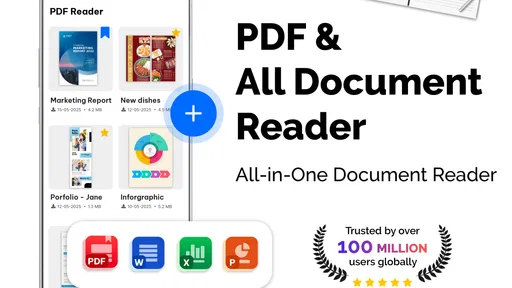
- File Management: Organizing your PDFs has never been easier. The app allows you to create folders, rename files, and even sort them by date or size. It’s like having a mini filing cabinet on your phone.
Performance and Speed
No one likes waiting around for a file to load, and thankfully, with this app, you won’t have to. The loading times are impressively quick, even for larger files. I tested it with some hefty documents, and it handled them without breaking a sweat. This makes it a fantastic choice for professionals who need to access large PDFs without delays.
For the best results with a large document, I’d open it before I urgently need it and check that the pages I care about are easy to reach. A bookmark is more useful than repeatedly swiping through a long file, and a clear filename makes the next opening faster to manage even when the app itself loads promptly. If a PDF contains dense diagrams or small print, zooming in and moving through it on a phone can still take patience; quick loading does not make a small screen as comfortable as a tablet or computer.
Accessibility and Compatibility
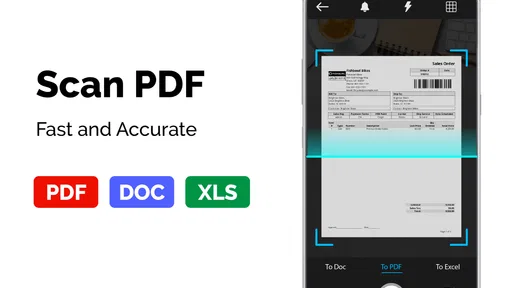
One of the things I love most about this app is its versatility. It’s available for both Android and iOS, so it doesn’t matter what type of device you have. It also supports a wide range of file types, so whether you’re dealing with standard PDFs or more complex document formats, this app has got you covered.
For Android users, the current version is 3.3.0 and requires Android 8.0 or later. The app is free to download, while optional in-app purchases range from about fifty cents to around sixty dollars per item. I’d start with the free experience and only consider a purchase if a feature you actually use makes it worthwhile; a price range by itself is not a reason to pay. The app is rated for Everyone, so its intended audience is broad, though parents should still use their own judgment about any app they install on a shared device.
EZTech Apps is the developer, and the app has an average rating of 4.2 from around 525,000 ratings, alongside roughly 3,400 written reviews. It has passed 100 million installs, which suggests that many people have tried it, but popularity does not tell me whether it matches an individual workflow. I’d treat those figures as context, then judge it by whether its organization and reading tools make my own documents easier to handle.
Security Features
In today’s digital world, security is a big deal, and the app takes this seriously. It offers password protection for your sensitive documents, ensuring that your information stays safe from prying eyes. This is a crucial feature for anyone handling confidential or private files.
Password protection can be useful when you want an extra barrier around a document on your device, but I would not treat it as a complete privacy plan. Be careful about where you save a file, who can access the device, and whether you are sharing the protected copy through a channel you trust. For highly sensitive work, follow the rules set by your organization and use the approved storage and review tools rather than relying on a single app feature.
Choosing it over another PDF option
The usual alternatives fall into a few broad groups. A built-in phone viewer is often enough for opening and reading an occasional attachment, and it can keep the process simple if you do not need a separate library. A cloud-storage app is a better fit when shared folders and keeping documents in one existing system are your priorities. A desktop PDF editor is generally more comfortable for extensive revisions, precise layout work, or long sessions that require a keyboard and larger screen.
This app sits between those choices: it is more organized than a bare viewer, while still being aimed at handling documents on a phone. That balance is useful for people who read regularly and want basic markup without turning every document into a full editing project. The trade-off is that one app may not be ideal as both a reading shelf and a team’s authoritative document store. If colleagues need to collaborate on the same current file, a shared platform may be the more sensible center of the workflow.
Switching readers is usually straightforward, but moving your habits takes more thought. Before making this your main place for PDFs, try a few representative files: a long document that needs bookmarks, a page you want to annotate, and a folder of files you often revisit. Check whether the names and folder structure make sense to you, then decide whether you want to keep the originals in another location as well. This small trial helps avoid a messy library or confusion about which copy contains your latest notes.
I would skip a dedicated reader if I open PDFs only once in a while and my phone’s built-in viewer already does the job. I’d also look elsewhere if my main requirement were advanced editing, team review, or a tightly managed cloud workflow. But for a person who wants one convenient place to read, bookmark, mark up, and arrange everyday PDFs, the combination here is appealing. The app belongs in the practical middle ground rather than being a replacement for every document tool.
Final Thoughts
Overall, PDF Reader – PDF Viewer is a robust and versatile app that ticks all the right boxes for efficiency and ease of use. Whether you’re a student, a business professional, or just someone who frequently deals with PDFs, this app is a fantastic tool to have at your disposal. With its user-friendly interface, powerful features, and top-notch performance, it’s definitely worth checking out. So, if you’re in the market for a reliable PDF reader, I’d say this one’s a no-brainer.
My recommendation is a little more specific: try it if your main frustration is juggling documents on a phone and you want reading, bookmarks, annotations, and basic organization together. Start with a small set of files, use folders and descriptive names from the outset, and see whether the app fits naturally into your routine before making it your default. If you need a simple reader, keep things simple; if you need deeper editing or collaboration, choose a tool built around that work. For everyday PDF reading with useful ways to pick up where you left off, this is a sensible option to consider.
Verdict
Strengths of PDF Reader – PDF Viewer
- User-friendly interface for easy navigation.
- Supports various file formats besides PDF.
- Fast loading and smooth scrolling.
- Offline mode available for convenience.
- Annotation tools enhance document interaction.
Limitations of PDF Reader – PDF Viewer
- Ads can be intrusive and disruptive.
- Limited features in the free version.
- Occasional bugs with large files.
- No cloud integration for some services.
- Customization options are limited.
Similar Picks in This Category
View All
Google Calendar
Google LLC4.6

Google Drive
Google LLC4.3

Google Assistant
Google LLC3.9

Microsoft OneDrive
Microsoft Corporation4.6

Samsung Calendar
Samsung Electronics Co., Ltd.4.1

Microsoft OneNote: Save Notes
Microsoft Corporation4.6
Frequently Asked Questions
What features does the PDF Reader – PDF Viewer offer?
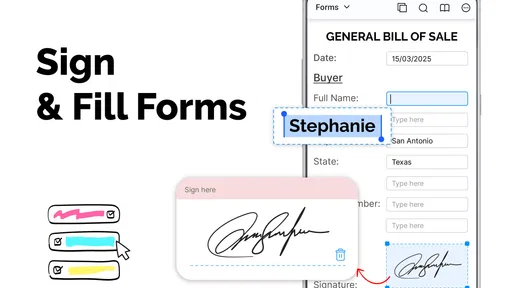
The PDF Reader – PDF Viewer provides a comprehensive set of features for managing PDF documents. It includes tools for annotating, highlighting, and bookmarking pages. Users can also fill out forms, sign documents, and search for specific text within PDFs. The app is designed to enhance productivity by offering a user-friendly interface and seamless navigation.
Is the PDF Reader – PDF Viewer compatible with all devices?
Yes, the app is compatible with both Android and iOS devices. It is optimized to work smoothly across a range of smartphones and tablets, providing consistent performance. Whether you're using an older device or the latest model, the app ensures that you can view and manage PDF documents efficiently.
Does the app support offline use?
Absolutely, the PDF Reader – PDF Viewer supports offline use, allowing you to access your documents without an internet connection. This feature is particularly useful for users who need to work on the go or in areas with limited connectivity. All downloaded files are stored locally and can be accessed anytime.
Are there any in-app purchases or advertisements?
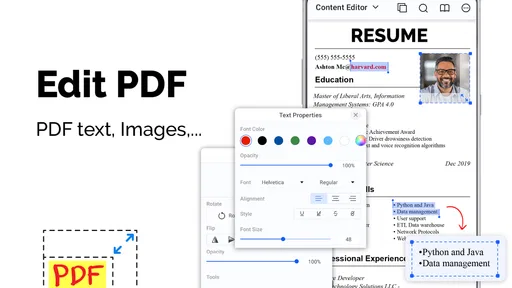
The app is free to download and offers a variety of features at no cost. However, it does include some in-app purchases that unlock additional features, such as advanced editing tools. There are minimal advertisements in the free version, but they can be removed with a one-time purchase of the premium version.
How secure is my data with the PDF Reader – PDF Viewer?
Security is a top priority for the PDF Reader – PDF Viewer. The app uses encryption to protect your documents and personal information. It also includes password protection and permissions management to ensure that your data is accessed only by authorized users. Regular updates are provided to enhance security features.
